- AI for Ecommerce and Amazon Sellers
- Posts
- Guide: Using AI in Excel
Guide: Using AI in Excel
A full SOP inside

Jo Lambadjieva
January 27, 2026

From Our Sponsor:
$42k/mo to $219k/mo on Amazon
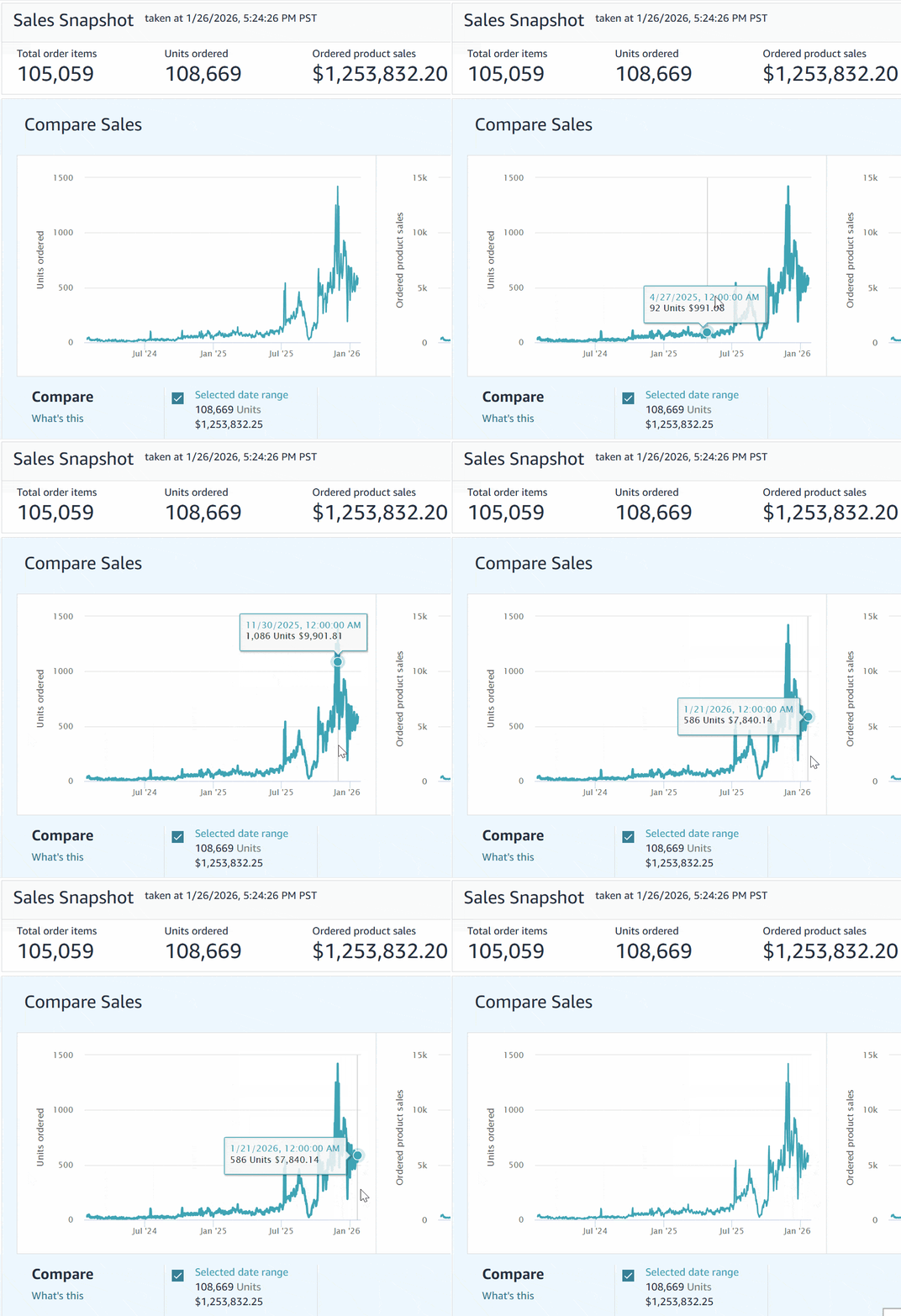
Tailoring a series of AI image ads to specific shopper intents..
..one of 5 major Amazon PPC strategies that took this baking brand from $42k/mo to $219k/mo on Amazon in 10 months.
Our friend Chris Rawlings implemented the strategies and reaped the rewards. Get a professional Amazon PPC Audit from Chris and his team today with specific actions you can take to grow more profitably on Amazon.
Guide: Running GPT Inside Your Spreadsheets for Bulk Tasks

Understanding Spreadsheet-Integrated AI
Many teams export data from spreadsheets to external tools when they need to process text at scale—generating SEO metadata, translating content, analyzing sentiment, or classifying customer feedback. This creates workflow friction and version control issues.
Talarian's "GPT for Work" add-ons bring GPT functionality directly into Google Sheets and Microsoft Excel. This enables bulk text processing without leaving your spreadsheet environment, maintaining your existing workflows while adding AI capabilities for tasks that would otherwise require manual effort or external platforms.
This guide covers installation, setup, and three practical applications: SEO metadata generation, product copy localization, and review sentiment analysis.
What You'll Need
Account Access
Google account (for Google Sheets integration)
Microsoft account (for Excel integration)
Permission to install add-ons in your organization
Technical Considerations
Corporate firewall users may need IT approval for add-on domain access
Confirm your organization allows third-party add-ons before beginning
Installation: Google Sheets
Step 1: Install the Add-On
Open Google Sheets and navigate to the Google Workspace Marketplace. Search for and install "GPT for Sheets™ and Docs™".
Step 2: Access the Tool
In any Sheet, go to Extensions → GPT for Sheets and Docs → Open. A sidebar will appear with the tool interface.
Step 3: Select Your Working Mode
The add-on offers three approaches:
Agent Mode: Interactive chat interface for exploring and creating columns dynamically
Bulk Tools: Consistent prompt execution across multiple rows simultaneously
GPT Functions: Formula-based approach using =GPT(...) syntax in cells
Installation: Microsoft Excel
Step 1: Install the Add-In
Open Excel and navigate to Home → Add-ins. Search for "Talarian / GPT for Excel Word". Install and accept the required permissions.
Step 2: Enable in Your Workbook
Open your target workbook and access the add-in from the ribbon (Home → GPT for Excel Word). Confirm the add-in panel is active before using GPT formulas.
Selecting Your Working Mode
Agent Mode
Best for: Exploratory work where final format is undefined
Use when you need to:
Create new output columns interactively
Generate initial results for review
Adjust formatting based on spot-checking
Bulk Tools Mode
Best for: Consistent execution at scale
Use when you have:
Defined input columns with clear structure
Strict output format requirements
Hundreds or thousands of rows to process
GPT Functions Mode
Best for: Cell-level precision and control
Use formulas when you need:
Predictable, repeatable behavior per cell
Easy drag-down functionality across rows
Spreadsheet-native auditing capabilities
Application 1: SEO Metadata Generation
Business Context
For product catalogs or content inventories requiring SEO-optimized titles and descriptions at scale.
Sheet Structure
Column A: Primary Keyword
Column B: Page Topic / Product
Column C: USP / Notes
Column D: Meta Title (output)
Column E: Meta Description (output)
Meta Title Formula
Place in cell D2:
=GPT("Write an SEO meta title (max 60 chars). Include the primary keyword. UK English. Tone: clear, premium, not salesy.", A2&" | "&B2&" | "&C2, 0.4)Meta Description Formula
Place in cell E2:
=GPT("Write an SEO meta description (max 155 chars). Include the primary keyword once, add a benefit + soft CTA. UK English.", A2&" | "&B2&" | "&C2, 0.5)Quality Assurance Checklist
Verify title ≤ 60 characters
Verify description ≤ 155 characters
Confirm keyword appears naturally
Check for spammy phrasing (excessive caps, superlatives)
Spot-check 10 rows before applying to entire sheet
Application 2: Product Copy Localization
Business Context
Translating product content while maintaining brand term consistency and regional formatting preferences.
Sheet Structure
Column A: EN Copy
Column B: DE (German output)
Column C: FR (French output)
Column D: ES (Spanish output)
Translation Formula (German Example)
Place in cell B2:
=GPT_TRANSLATE(A2, "German", "English", "Use informal 'du'. Keep brand names unchanged. Keep measurements as-is.")Repeat for additional languages by modifying the target language parameter.
Quality Assurance Checklist
Maintain glossary tab for terms that must never be translated
Verify units and measurements remain accurate
Check decimal format conventions by region
Review regulated wording for compliance (particularly food, supplements, health claims)
Application 3: Review Sentiment Analysis
Business Context
Converting unstructured customer feedback into structured, actionable data for product and operations improvements.
Sheet Structure
Column A: Review Text
Column B: Sentiment (output)
Column C: Main Issue Tag (output)
Column D: 1-sentence Summary (output)
Sentiment Classification Formula
Place in cell B2:
=GPT_CLASSIFY(A2, "Positive, Neutral, Negative", "Return only the label.")Issue Categorization Formula
Place in cell C2:
=GPT_CLASSIFY(A2, "Taste, Shipping, Packaging, Price, Effectiveness, Other", "Pick the best single category.")Summary Generation Formula
Place in cell D2:
=GPT("Summarize this review in 1 sentence. Keep the key complaint/praise.", A2, 0.2)Analysis Workflow
Build pivot table showing percentage negative by tag
Filter for "Negative + Packaging" to identify quick product or operations fixes
Use summaries as qualitative evidence for listing improvements
Track trends over time to measure impact of changes
Do You Love The AI For Ecommerce Sellers Newsletter?
You can help us!
Spread the word to your colleagues or friends who you think would benefit from our weekly insights 🙂 Simply forward this issue.
In addition, we are open to sponsorships. We have more than 62,000 subscribers with 75% of our readers based in the US. To get our rate card and more info, email us at [email protected]
The Quick Read:
Claude Code is coming for the marketing to-do list, it browses, clicks, and posts like a real person, so “we should hire” might turn into “we should automate.”
OpenAI’s pushing ChatGPT Go everywhere (now including the US) at $8/month and plans to test ads on free + Go, with big promises on privacy, control, and ads never steering answers.
The 2026 vibe check for brands: AI can speed up output, but humans still make culture move. Work with creators, tap into what people actually care about, and bring substance not filler.
Threads is now more used than X on mobile, says Similarweb. X still wins on the web, but Grok deepfake drama is bringing investigations and pushing some users to try alternatives like Bluesky.
Google says don’t expect ads in the Gemini app yet. They’re monetising AI search first, and they’ve learned the hard bit is keeping ads from feeling intrusive or trust-killing in chat-style flows.
People are tired of AI slop and doomscrolling, so going analog is booming. Crafts, knitting, books, film cameras, anything that feels real, slow, and offline is having a moment.
Apple might finally give Siri a real AI chatbot brain in iOS 27, with a WWDC headline moment rumored. Translation: Apple wants back in the assistant race.
Gemini in Chrome is shifting from helpful sidebar to do it for me. New “Skills” could let you teach it repeatable tasks so it actually executes, not just explains.
Claude Cowork’s agent setup has a scary downside: researchers show how hidden prompt injections could trick it into uploading your files, without you approving anything. Convenience comes with blast radius.
SEO isn’t just keywords anymore, it’s brand. If Google and LLMs understand who you are, what you do, and how you sound consistently, you don’t just rank, you get recommended.
Anthropic’s CEO says AI progress is accelerating like an exponential curve, and we’re close to the steep part. Huge upside, but real risks too: job disruption, chip geopolitics, and safety that can’t be optional.

The Tools List:
🤖 Use 6 Top Chatbots At Once - Engage with six leading chatbots, including GPT-4 & Claude, simultaneously on a single screen.
🗣️ Synclabs - Translate any video to any language, with perfectly matched lip movements.
📹 Video interviews by Outset - Conduct user surveys with video and AI.
🌐 Narrativ AI - A marketplace for advertisers to buy talent likeness.
🎙️ Listener.fm - Perfect your podcast with AI-driven post-production.
About The Writer:

Jo Lambadjieva is an entrepreneur and AI expert in the e-commerce industry. She is the founder and CEO of Amazing Wave, an agency specializing in AI-driven solutions for e-commerce businesses. With over 13 years of experience in digital marketing, agency work, and e-commerce, Joanna has established herself as a thought leader in integrating AI technologies for business growth.
For Team and Agency AI training book an intro call here.